
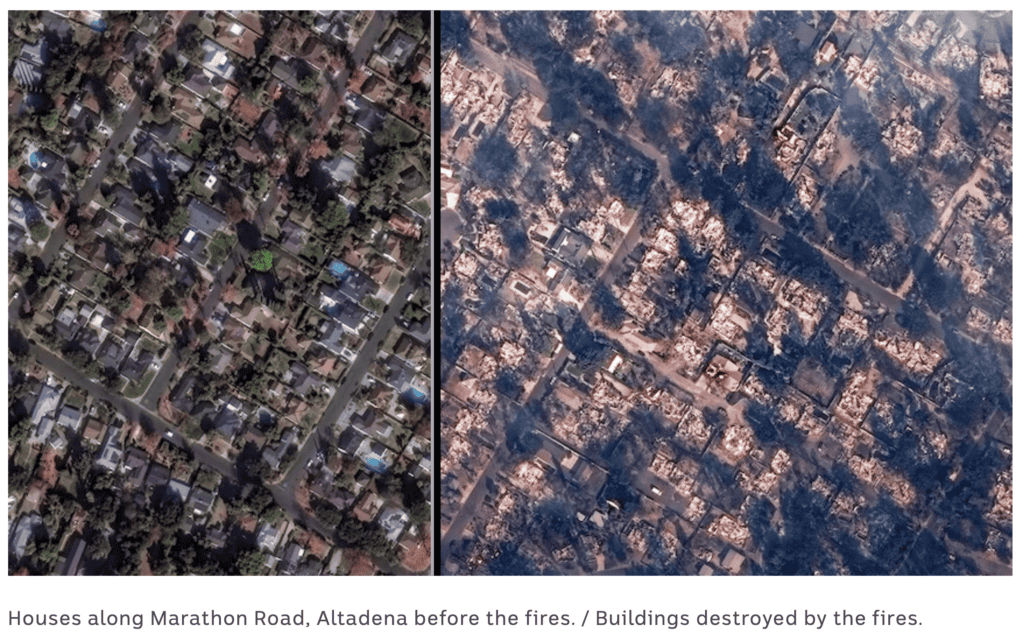
The devastating LA fires got me thinking about emergency preparedness. While thankfully none of my clients or friends lost homes (that I know of), many had to evacuate at a moment’s notice… so I’ve had many conversations about evacuation priorities. What’s important in your home, what’s worth saving and how do I do that when given evacuation orders… or ideally, before?
Here’s what I know:
Digital “belongings” are the easiest to protect
It’s critical to have a digital vault with passwords, IDs, and important documents that’s in the cloud and on all your devices. “Fireproof safes” turned into puddles in these super-hot home fires so digitizing those contents (the ones that can be digitized, that is… see #3 below) into a secure location should be a priority. Yes, it’s another plug for 1Password… but if you make it a priority now, when disaster strikes you’ll have all your critical documents accessible from your phone, even if you can’t get home. It’s one of the least expensive, but most valuable subscriptions I have.
The rest of your data is important, too
We start with a solid backup of your computer and then consider if you have any hard drives that hold important files that aren’t on the computer. A Time Machine backup on an inexpensive portable hard drive is something you can easily take with you when you’re evacuating.But what if you’re not there when the fire starts and you can’t make it back to your house? Then, you’ll be really glad if you have a cloud backup too (or at the very least a second Time Machine backup stored somewhere else that you rotate). The cloud backup service I recommend and love is called Backblaze—by continuously copying your files to the cloud whenever you have wifi, it’s a complete disaster recovery solution that backs up both your computer and external drives.
Let’s talk about photos and memories.
With solid backups, our data on computers can be replaced and fully restored. Many who lose their homes say the things they really miss are the physical keepsakes—those pre-digital photos, Christmas cards, kids’ artwork, and other irreplaceable items that we might not have time or space to grab during an evacuation.While our iPhone photos are pretty safe thanks to iCloud Photo Library sync (a huge benefit of the Apple ecosystem that I call “photo nirvana”), most of us haven’t taken the time to digitize, and therefore preserve, these memories.After testing various scanning methods, I’ve found the simplest solution is basically the best: your iPhone’s camera app. All you need is a $15 tripod mount to hold your phone steady above a flat workspace, plus good lighting (natural light is best, but any diffuse lighting that doesn’t create shadows works). Then just move items under the phone, snap, and repeat.While it might not feel urgent now, the digital copies of your precious memories will be priceless if disaster strikes.
When you’re running out the door…
One last pro-tip for evacuating (and I pray you will never have to): Take a video of your entire house right before you leave. Open drawers and cabinets and pause briefly on the contents with your phone before you move on. This will document your belongings for insurance and potentially save tons of frustration.If you’re not a last minute type person, though, Under My Roof is a fantastic way to keep a record of your home’s valuables… and you could take that video right now, why wait?

Wake up call? Speaking for myself, these fires got me to re-think my plans. I hope this info gave you some inspiration to plan a little better… but I wouldn’t be surprised if it’s mostly overwhelming. So hit me up, I can help with a strategy and support so we can all sleep better at night.



 I learned about Grand Central from
 First, the new SMS feature is awesome. I’m realizing now how many texts I must have missed when GrandCentral didn’t support SMS because people thought they had my cell number. Oh well. Now if someone texts my GV number, I get a text from a strange number and it says their full name at the beginning of it. There seems to be one number for each person (so I attach the number to that person for future incoming reference), though I have no idea how google could be using so many numbers for just texting. The chat thread is online next to my (transcribed) voicemails, and best of all, I can reply to a text from the browser (or iPhone) if I want, saving on SMS charges.
